
Your whole rig, in one editor
Plug in your Helix or HX and Helrig opens the preset it’s playing. Edit it live, keep every preset from every pedal in one library, and move a tone from one pedal to another.
Before you plug in: back up your pedal in HX Edit, then close HX Edit.
Runs on
macOS
Apple silicon & Intel · macOS 12+
Install on macOS →Windows
For Windows 11, 64-bit (x64)
Install on Windows →Linux
x86_64 · .deb, .rpm or AppImage
Install on Linux →
What it does
Edit live, and see everything while you do
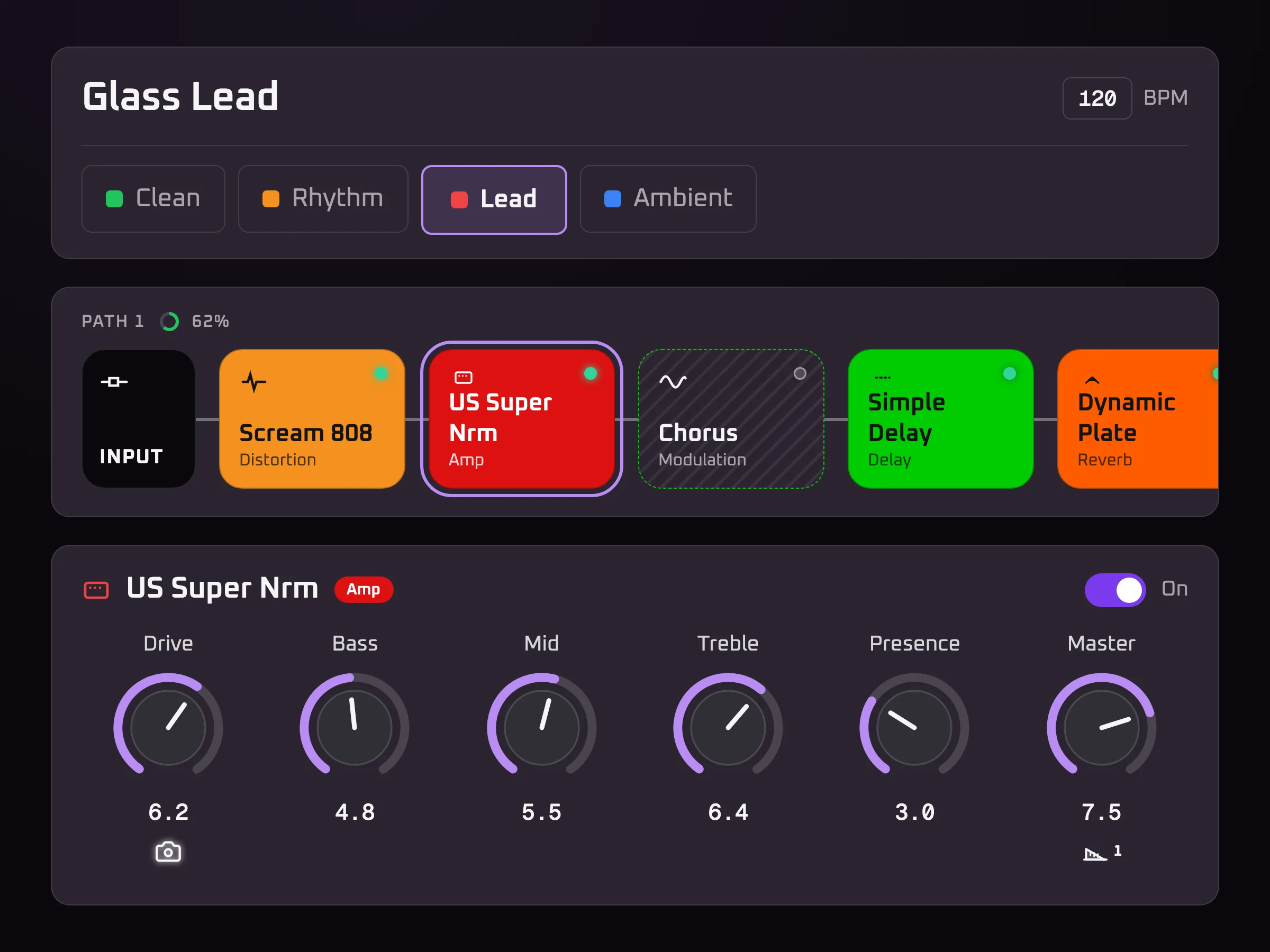
ProThe whole signal chain, snapshots, controllers and Command Center on one screen. Change a knob and hear it on the pedal. Undo anything, step by step.
Every preset from every pedal, in one library
Pro beyond 10Import every setlist from each pedal you own without switching the pedal away from what it’s playing. Importing again only adds what’s new. Search by name or by the gear inside a preset, on any computer you sign in on. Needs a free account.
Move a tone from one pedal to another
Convert a Helix preset for your HX Stomp or HX Effects, and back, then save it straight to that pedal. Helrig lists every change it had to make.
Save presets to your pedal, safely
ProPut a preset from your library, a file or the Community Library into the slot you choose. Helrig backs that slot up before it writes, and checks the result afterwards.
Opens what the pedal is playing
Plug in and Helrig connects on its own. There’s no file to export first.
Everything the website does, too: opening backups and setlists, sharing, and the Community Library.
Get it runningEvery download, and three steps from here to your pedal.
- 1
Download
Loading the files…
Needs macOS 12 or later. Signed and notarized by Apple, so it opens without a warning.
Which Mac do I have?
Apple menu → About This Mac. If it says Chip with Apple M-something, take the Apple silicon download. If it says Processor with Intel, take the Intel one.
- 2
Install
- Open the .dmg.
- Drag Helrig onto the Applications folder.
- Eject the disk that appeared.
- Open Helrig from Applications or Launchpad.
If macOS says the app can’t be opened or is damaged, something is wrong. Write to hello@helrig.com with a screenshot.
- 3
Connect your pedal
- Back up your pedal. In HX Edit, use Create Backup. Writing a preset replaces whatever is in that slot.
- Close HX Edit. Only one editor can hold the pedal at a time. This is the most common reason a pedal isn’t found.
Plug in and Helrig connects on its own and opens the current preset.
- 1
Download
Loading the files…
For 64-bit (x64) Windows 11. Signed: Windows shows the publisher as Yashar Moradi. The installer updates itself; the portable app runs from anywhere but doesn’t update itself.
Windows on ARM: the app installs and runs, but it can’t reach a pedal. Line 6’s USB driver is built for x64 only, so HX Edit can’t reach one there either.
- 2
Install
- Run the installer. It installs for your user only, needs no administrator, and adds Helrig to the Start menu.
- If your browser says the file isn’t commonly downloaded, choose Keep. A newly signed app takes a while to build that reputation.
- If you had the portable app before, install this one anyway: only the installed app updates itself. Then delete the old .exe and any shortcut to it.
- To uninstall: Settings → Apps → Helrig.
- 3
Connect your pedal
- Back up your pedal. In HX Edit, use Create Backup. Writing a preset replaces whatever is in that slot.
- Close HX Edit. Only one editor can hold the pedal at a time. This is the most common reason a pedal isn’t found.
- On Windows, have Line 6’s USB driver. If HX Edit already talks to your pedal on this computer, you have it. If not, installing HX Edit installs it.
Plug in and Helrig connects on its own and opens the current preset.
- 1
Download
Loading the files…
Take the .deb on Ubuntu, Debian, Mint or Pop!_OS, the .rpm on Fedora or openSUSE, and the AppImage on anything else. The packages set up USB access to the pedal for you. The AppImage needs one rule added by hand (see the install steps).
Linux files carry no signature of their own. The signed checksum list below is how to check them.
The AppImage updates itself. The .deb and .rpm don’t yet: download the new version from this page.
- 2
Install
Open a terminal in your downloads folder (
cd ~/Downloads).Ubuntu, Debian, Mint, Pop!_OS
- Install:
sudo apt install ./Helrig_<version>_amd64.deb - Unplug the pedal and plug it back in.
Fedora
- Install:
sudo dnf install ./Helrig-<version>-1.x86_64.rpm - Unplug the pedal and plug it back in.
openSUSE
- Install:
sudo zypper install ./Helrig-<version>-1.x86_64.rpm - Unplug the pedal and plug it back in.
AppImage
- Give it a home and allow it to run:
mkdir -p ~/Applications && mv Helrig_<version>_amd64.AppImage ~/Applications/ && cd ~/Applications chmod +x Helrig_<version>_amd64.AppImage - Let your user reach a Line 6 pedal:
sudo tee /usr/lib/udev/rules.d/70-helrig-line6.rules <<'EOF' SUBSYSTEM=="usb", ATTR{idVendor}=="0e41", MODE="0660", TAG+="uaccess" EOF sudo udevadm control --reload && sudo udevadm trigger0e41is Line 6’s manufacturer ID. The rule opens nothing to other users or to the network. - Unplug the pedal, plug it back in, and start
~/Applications/Helrig_<version>_amd64.AppImage.
- Install:
- 3
Connect your pedal
- Back up your pedal. In HX Edit, use Create Backup. Writing a preset replaces whatever is in that slot.
- Close HX Edit. Only one editor can hold the pedal at a time. This is the most common reason a pedal isn’t found.
Plug in and Helrig connects on its own and opens the current preset.
The app checks for an update when it starts and asks before installing it. It never updates behind your back.
Check your download (optional)
Each file’s SHA-256 is listed under it. To compare, run:
- Mac:
shasum -a 256 ~/Downloads/Helrig_<version>_aarch64.dmg - Windows (PowerShell):
Get-FileHash "$HOME\Downloads\Helrig_<version>_x64-setup.exe" -Algorithm SHA256 - Linux:
sha256sum Helrig_<version>_amd64.AppImage
The full list, SHA256SUMS, is signed. To check the signature with minisign:
minisign -Vm SHA256SUMS -P <public key>Questions
Is the desktop app free?
Mostly. Downloading it, reading your pedal, importing its presets and converting them are free, and so are opening, editing and exporting presets. Pro adds writing to the pedal (live editing and saving presets to it) and a library where every preset stays editable.
Which pedals does it work with?
Line 6 Helix and HX pedals connected over USB. If Helrig doesn’t support your pedal yet, it says so when you connect it, and the editor still opens that pedal’s preset files.
Does it replace HX Edit?
For editing and managing presets, yes. Writing to the pedal from Helrig is part of Pro; without it, you can export a .hlx and load it with HX Edit. Firmware updates and the pedal’s global settings stay with HX Edit.
Can I use it alongside HX Edit?
Yes, but not at the same moment. Only one editor can hold the pedal, so close one before the other connects.
Why isn't my pedal found?
Three reasons, most common first:
- HX Edit is still open.
- On Windows, Line 6’s USB driver is missing (installing HX Edit installs it).
- On Linux with the AppImage, the USB rule in the install steps hasn’t been added.
After fixing any of these, unplug the pedal and plug it back in.
Is there an iPad or phone app?
Not yet. Phone and tablet apps are being built, with no date yet. The editor works in the browser on an iPad or phone today.
Is Helrig made by Line 6?
No. Helrig is unofficial, independent, and not affiliated with or endorsed by Line 6 or Yamaha.