


Importing and moving Helix presets
Getting a preset into something you can edit, and getting it back onto the hardware, are two different problems. Helrig solves the first entirely in the browser — including pulling one preset out of a whole-device backup — and hands the second to the device or to Helrig’s desktop appHelrig’s desktop app, because the website cannot reach a Helix.
The three steps, and which one is Helrig
Almost every “how do I import a preset” question is really one of three steps, and they need different tools:
- Off the device. Export a preset or back the unit up from the hardware or from HX Edit. This produces a
.hlx, a.hxbor a.hlsfile. - Into an editor. Open any of those three in Helrig. No install, no account, and the file is read on your own machine.
- Back onto the device. Export the edited preset as a standard
.hlxand load it the way you always have.
On the website, Helrig replaces step 2. Steps 1 and 3 belong to the hardware and to Line 6’s own tools there — that is a browser limit, not a design choice. Helrig’s apps do all three, with Helrig Connect; the section at the bottom covers it.
Opening a backup or a setlist
You do not have to explode a backup into individual files first. Helrig reads both of HX Edit’s multi-preset containers directly:
| File | Holds | In Helrig |
|---|---|---|
.hlx | One preset | Drop it straight on the editor |
.hxb | A whole-device backup — every setlist and slot | Browse it and pick presets out |
.hls | One exported setlist | Browse it and pick presets out |
Choose Import in the editor and pick the file. Helrig lists the setlists inside it by their real names, with the occupied slots in each — a Helix LT backup typically has eight setlists, an HX Stomp backup one — and a search box that flattens the whole file into one list of names when you already know what you are looking for.
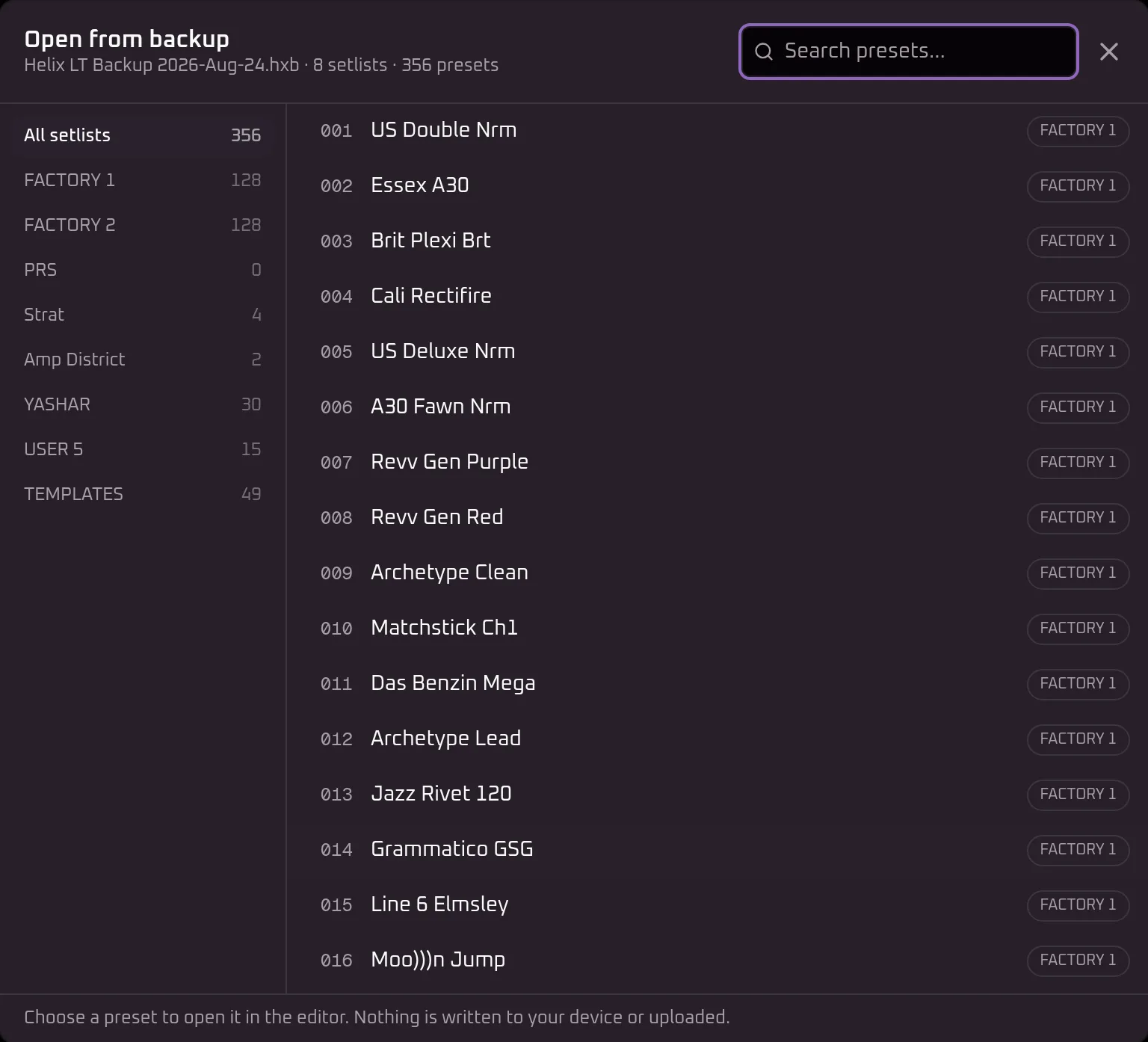
The backup is decoded in your browser. The backup file itself is never uploaded, and nothing is written to your device: the dialog says as much on the way in. If you are signed in and import presets into your library, those presets are saved there, because that is what you asked for.
One preset, or a whole backup
The two entry points do deliberately different things:
- In the editor, you pick one preset and it opens. That works signed out, and it is the right route when you want to look at a single sound out of a backup, or fix one and export it again.
- In the cloud library, signed in, you can select many at once and import them together. The backup already arranges its presets into setlists, so those setlists are recreated in the library rather than dumping everything into one flat pile.
A bulk import checks the count against your plan’s limit before it uploads anything, so selecting more than the library can hold tells you up front instead of failing partway. If a preset fails, the run reports which and why rather than stopping silently, and only the presets you selected are uploaded — never the backup file itself.
What a backup will not bring across
A .hxb is a backup of the whole unit, and Helrig reads the preset half of it. Impulse response files stored in the backup are not extracted, and neither are global settings — a preset that refers to an IR slot still refers to it, but the IR itself has to get onto the device the usual way.
Slots holding something the decoder cannot read are counted and shown rather than skipped quietly, so the number of presets you can see always accounts for every occupied slot in the file.
Copying a preset to a different device
A preset from a Helix backup does not simply open on an HX Stomp: the smaller device has fewer blocks, fewer snapshots and one DSP path instead of two. Helrig converts between them and lists every change the target forced.
Converting a preset between Helix and HX devices covers what converts to what, and what it refuses to decide for you.
Getting the edited preset back on
Helrig exports a standard .hlx. Load it onto the device the same way you always have — through HX Edit, or however you normally move a preset — and it behaves like any other preset file, because it is one.
Helrig’s website does not talk to your Helix or HX unit. Helrig’s desktop appHelrig’s desktop app does: it reads presets off the pedal over USB, saves them back and edits the pedal live. Helrig for Android is out. An iPad app is planned; there’s no date yet. Without the app, the hardware ends of the trip stay with Line 6’s tools.
Disclaimer
Helrig is an independent, one-person project. It isn’t built by, affiliated with, or endorsed by Line 6 or Yamaha — “Line 6”, “Helix” and “HX” are their trademarks.