


Your Helix presets on every device, and in step with your pedal
Your presets end up everywhere: on the pedal, in a backup from last year, in a downloads folder on another computer. Helrig keeps them in one private library that opens in your browser and in every Helrig app. Plug in your pedal and its setlists sit right next to that library, so you can see what’s where and keep the two in step.
One library, on every device
Save a preset to your library and it’s there wherever you sign in. Sort presets into setlists, give them labels and notes, and search by name, label, snapshot, block or the gear a block is based on. The Blocks filter finds presets by what’s in their chain. Every card shows the chain as small icons, from the input to the output.
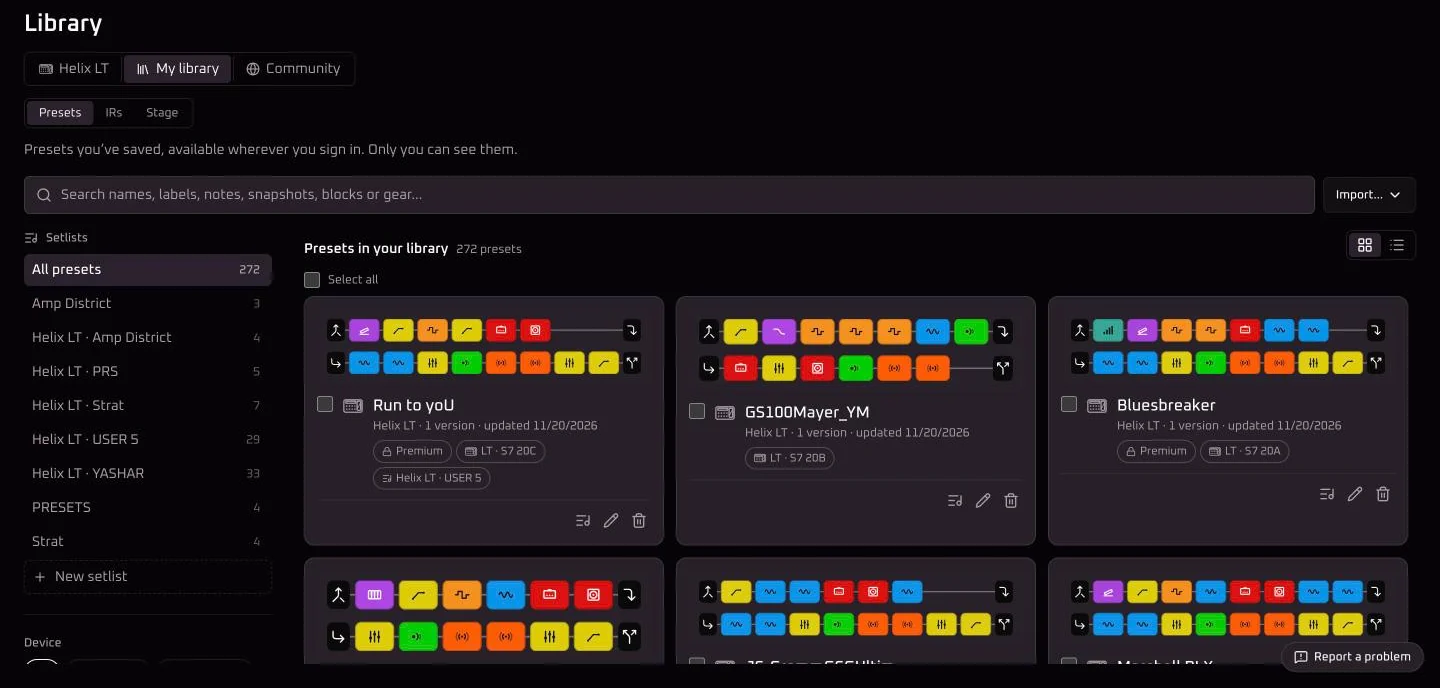
Only you can see your library. A free account keeps 10 presets you can edit; Helrig Pro has no limit.
Bring your presets in
- From a backup. Open an HX Edit backup or setlist and import the presets in one go, no pedal needed. How importing a backup works.
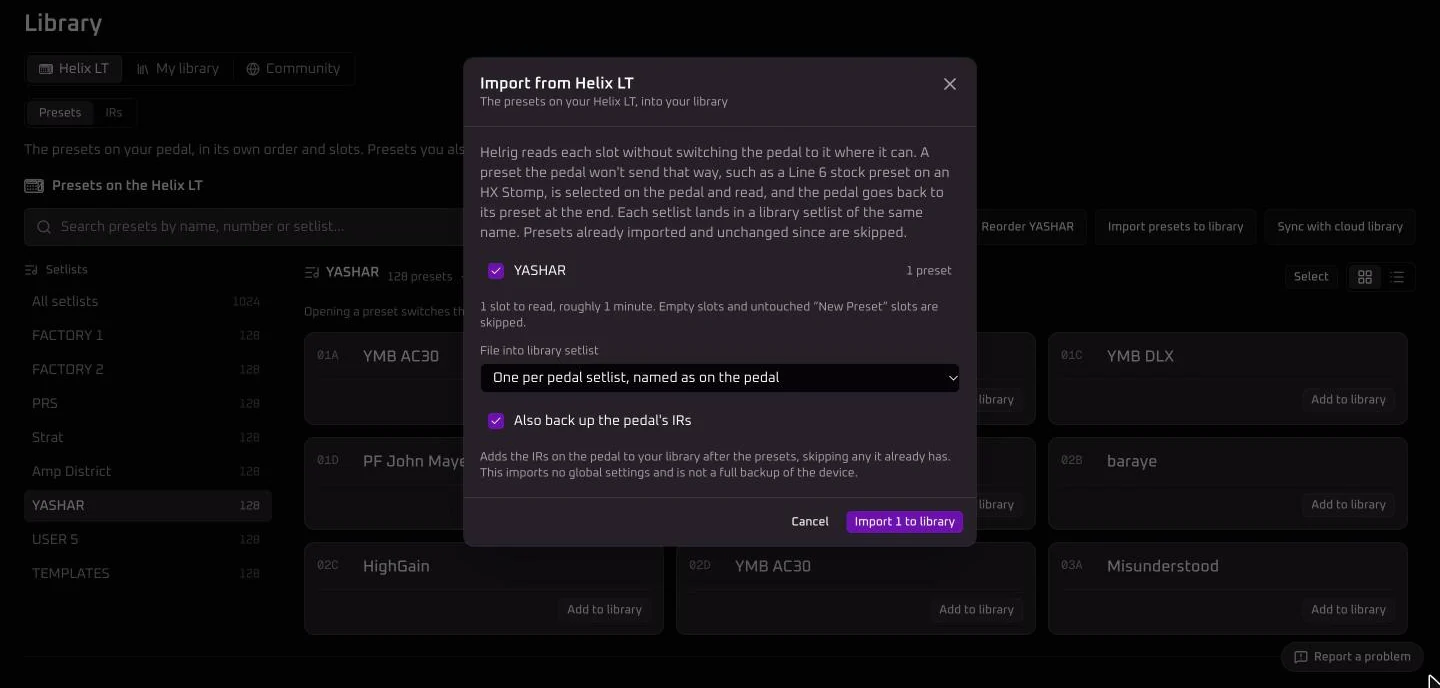
- From the pedal.Choose Import presets to library. Each setlist lands in a library setlist of the same name, and presets you already imported and haven’t changed are skipped. With Helrig Pro, tick “Also back up the pedal’s IRs” and they come along.
Your pedal, next to your library
With a pedal connected, the library page starts with it: its setlists, slot names and the preset it’s playing, laid out like your library. Opening a preset switches the pedal to it. Nothing is written.
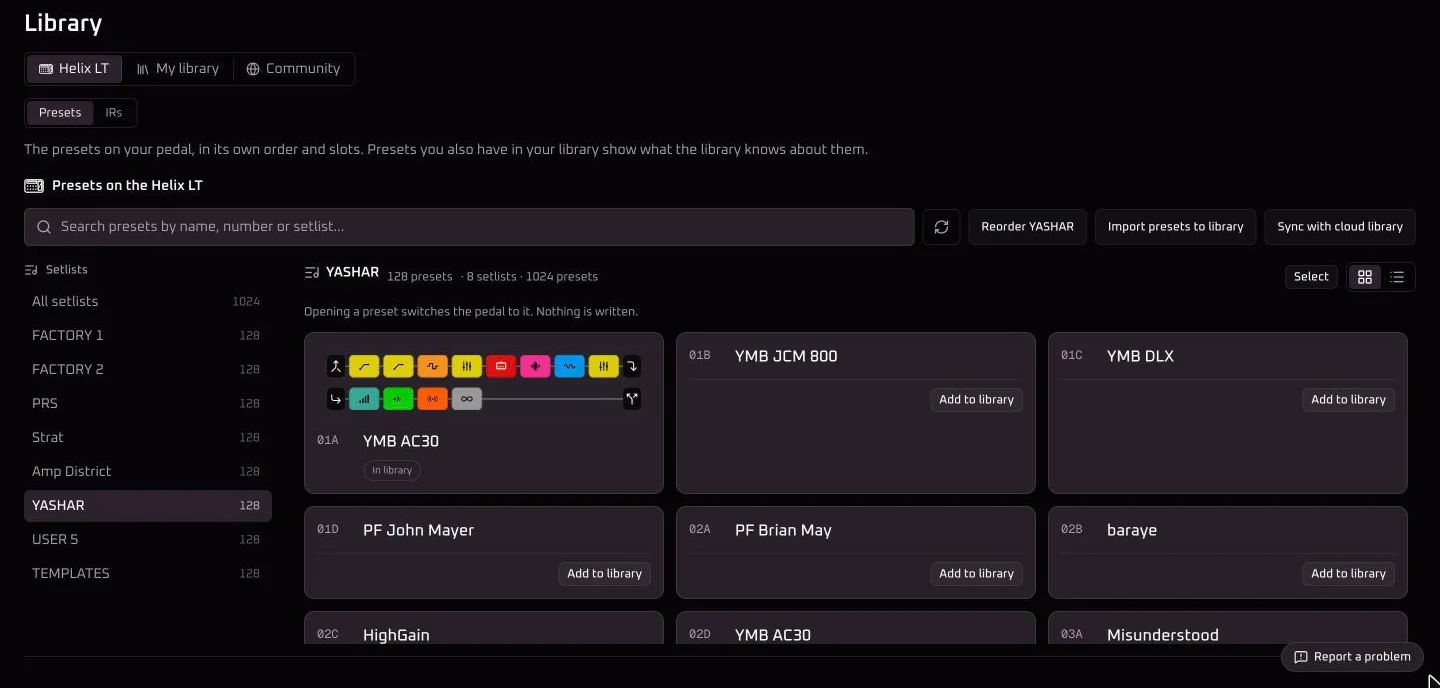
- A preset that’s also in your library shows its signal chain and says In library or Newer in library, with Update pedal.
- Add any other slot to your library with one click.
- Select several slots to add them to your library or copy them to another setlist, names included.
- Put a setlist’s presets in a new order on the pedal with Reorder.
Keep the library and the pedal in step
With Helrig Pro, presets you copy to or from a pedal remember where they came from. Open one from the pedal and Helrig tells you when the library has a newer version, when the pedal’s copy changed, or both. When both changed, choose the library’s, the pedal’s, or keep both as versions.
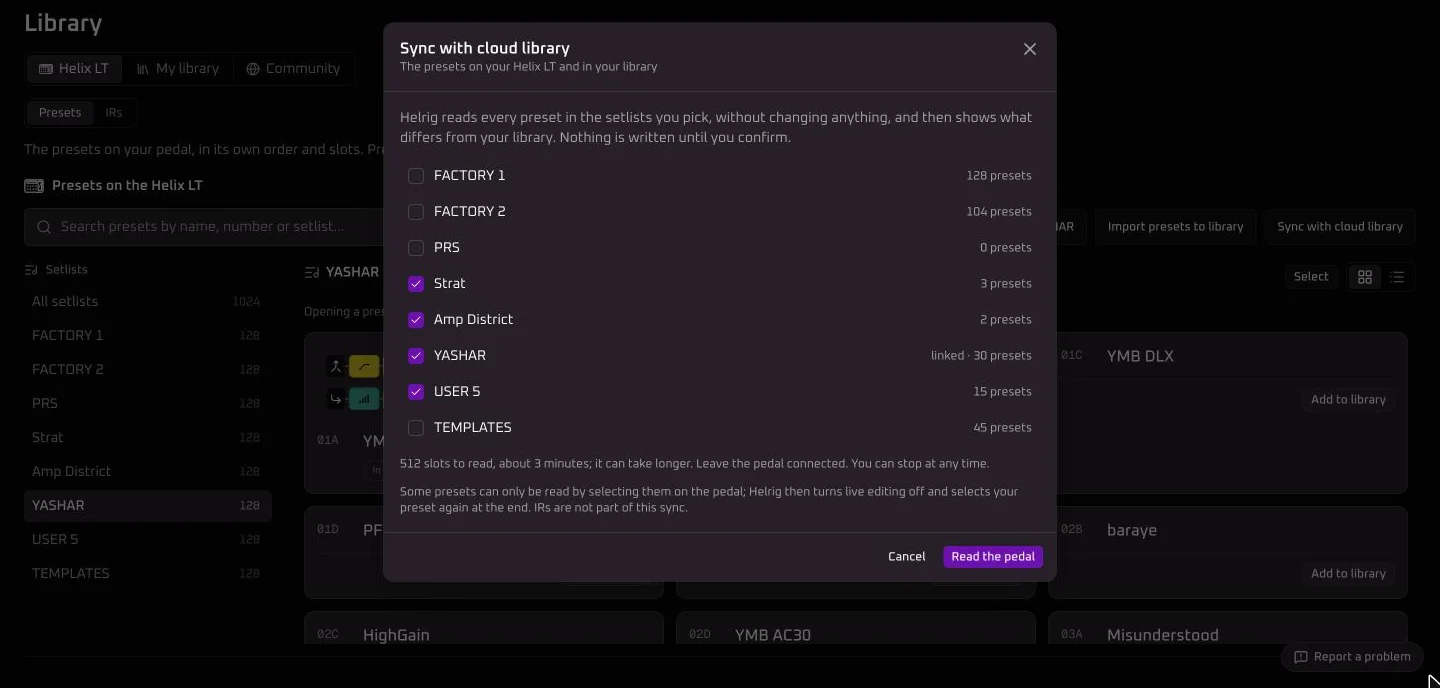
To check a whole pedal at once, choose Sync with cloud library. Helrig reads the setlists you pick, shows what differs from your library, and files new presets into the right setlists. Nothing is written until you confirm. IRs aren’t part of this sync: they have their own tools, in the IR guide.
Every save is kept
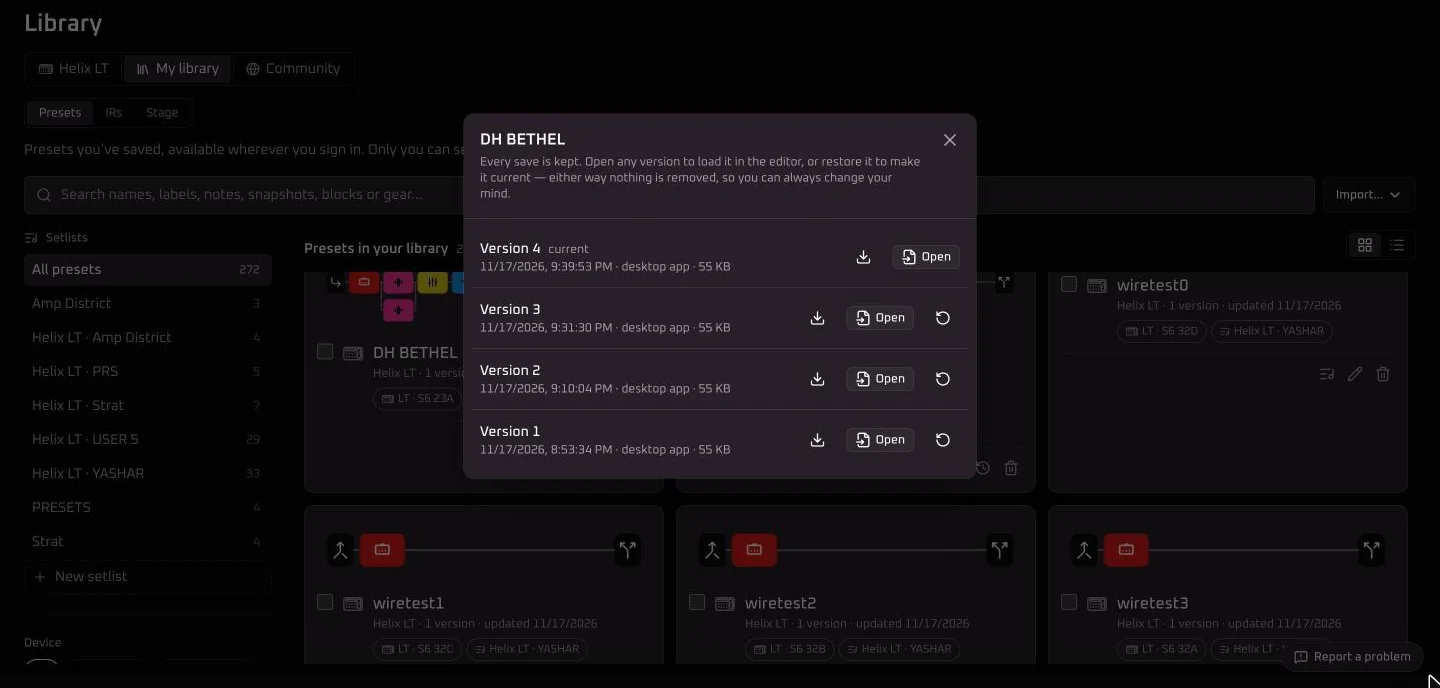
Each preset keeps its last 100 versions. Open any of them in the editor, download it, or restore it to make it current. Nothing is removed either way, so you can change your mind. A preset you delete stays restorable for 30 days.
What you need
- The library: a free account, in your browser or any Helrig app.
- The pedal tab and importing from the pedal: a Helrig app with your pedal connected, and Helrig Connect or Helrig Pro.
- Keeping the library and the pedal in step, and no preset limit: Helrig Pro.
Questions
Does the library cost anything?
No. A free account keeps 10 presets you can edit, up to 25 MB. Helrig Pro has no preset limit and 250 MB. Reading presets off a pedal needs Helrig Connect or Helrig Pro, like anything else over USB.
Who can see my library?
Only you. A preset leaves your library only when you share it by private link or publish it to the Community Library.
What if I change a preset on the pedal?
With Helrig Pro, Helrig notices. A preset you copied to or from the pedal remembers where it came from, so Helrig can tell you whether the pedal's copy or the library's is newer, and let you keep one or both.
Do I need the pedal to use the library?
No. Open, edit and organise your presets in your browser or any Helrig app. You need the pedal only to read presets off it or put them on it.
What about presets I bought on the Line 6 Marketplace?
When Helrig backs up your pedal, it keeps them in your library with a lock. You can edit, convert and send them to your own pedals, but not share, publish or export them.
More
Helrig is an unofficial, independent project, not affiliated with or endorsed by Line 6 or Yamaha. Line 6, Helix and HX are trademarks of their respective owners.